Preferences
You can configure your SolidOS user experience by setting your roles, managing your trusted applications, or even deleting your Solid account via the Preferences view.
Accessing Preferences
To display the Preferences view:
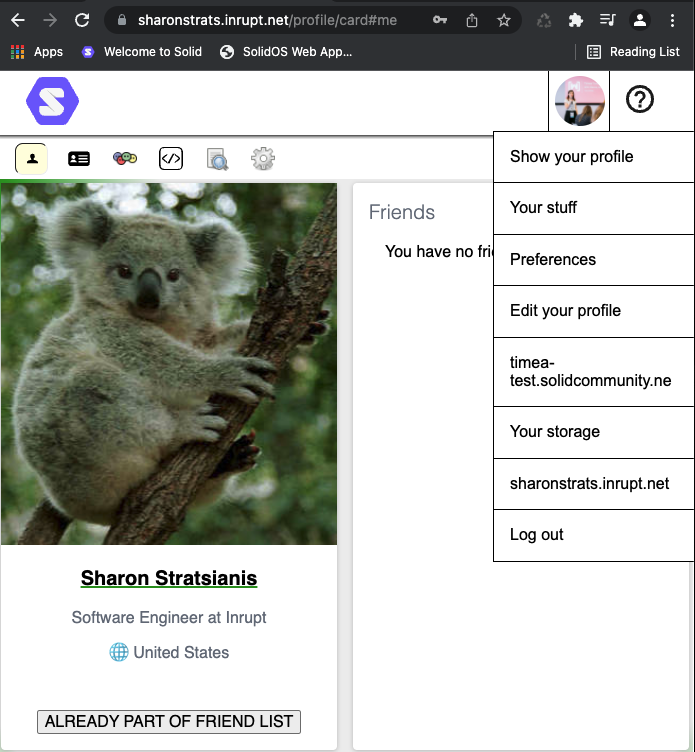
- Either click the Solid logo or select Preferences from the dropdown menu in the top-right of SolidOS.
- Click the Preferences tab.
Role
The options presented to you when viewing data can be customised based on your role. By default, all users can view all standard social views. Optionally, you can select one or more role(s) that provide access to advanced views in addition to the default views:
- Developer — View Data, N3, and RDF views of the data.
- Power User — View additional SolidOS views such as Note Pad and Meeting.
To update:
-
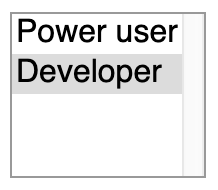
Select your optional role(s) from the Roles listbox.
 tip
tipMultiple Roles can be selected by holding down the Shift or Command key on your keyboard.
-
Click off the listbox.
You need to refresh your web browser for the role changes to take effect.
For more details on Roles, refer to the User Roles reference.
Manage Your Trusted Applications
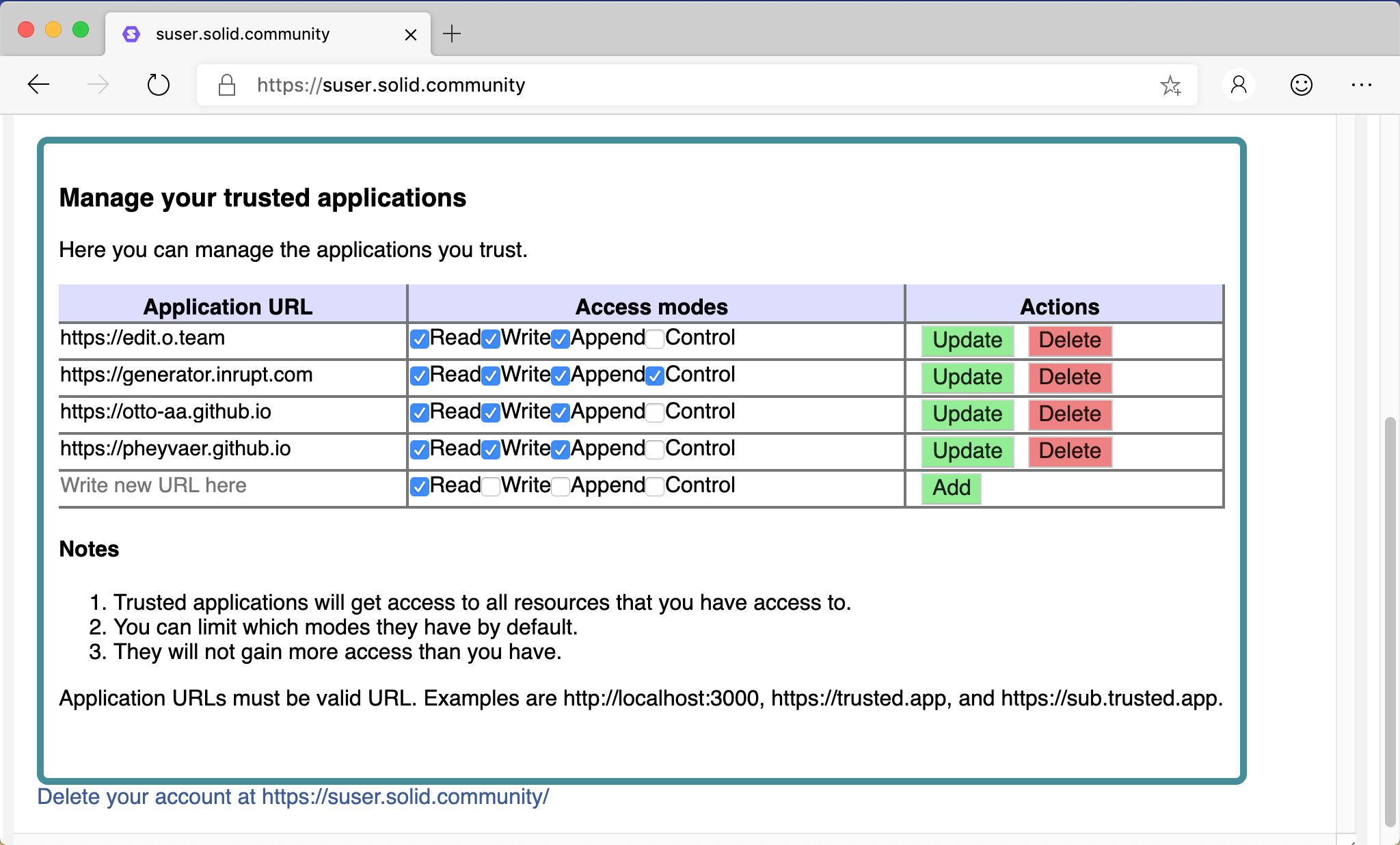
Before you can use third-party applications, you need to add them to the allowlist (i.e., list them as trusted to access data within your Pod) via the Trusted Application table:
Add
To allow a new third-party application, at the bottom of the table of trusted applications:
- Enter the URL of the new application under Application URL.
- Select the permissions, or Access Modes, you want to give to the new application.
- Click Add under Actions.
Update
To update the permissions for an existing trusted application, in the table of trusted applications:
- Update the permissions for the application.
- Click Update.
Delete
To revoke access for an existing trusted application, in the table of trusted applications:
- Click Delete next to the application.
- The application is immediately removed from the list of trusted applications.
Delete Your Solid Account
If you no longer want your Solid Pod, you can delete your account:
- Click the Delete your account link at the bottom of the Preferences page.
- You are redirected to the Delete Account page for the Solid server.
- Follow the displayed instructions to delete your account.
The actual workflow for deleting your account depends upon the Solid server you are using. For example, Node Solid Server (NSS).
When your account is deleted, all of the data is deleted and cannot be restored.
Your Stuff
As you create resources in your Pod (e.g., address books), you can define them as private and/or public. This causes links to the resources to be displayed in the Private things and/or Public things panels to allow for easy access.
Your Storage
The Your storage menu item brings you to an overview of all the resources within your Pod. This will always display the storage of your WebID, so it is your personal storage. Even if you navigate to a different Pod, you can still view your personal storage.
To view your storage:
- Select Your storage from the dropdown menu.
- A folder view of your storage is displayed.
Viewing Another User's Storage
To visualize and have access to the storage of another user, you have two options:
-
Add the storage directly in your profile/card.
Your storage is connected to your profile with a triple like
:me space:storage </> .. You can simply add more triples with the same predicate, like:me space:storage <otherWebID>, to your WebID Profile Document.note- Make sure you have the correct prefix for
space:storage. The full URI is<http://www.w3.org/ns/pim/space#storage>. - You will only be able to visualize the resources that are readable with your WebID in the available Pods.
- Make sure you have the correct prefix for
-
Navigate to a person's Pod and log in.
You will be prompted to authorize the new person's Pod to access your Pod. This is required as a preliminary step; otherwise, your Pod storage cannot be accessed and displayed. If you authorize the new WebID to access your store, then you can see the store of the new Pod as a new option in the dropdown header menu.