Address Book
The Address Book view allows you to maintain your contacts, including grouping them together.
View
To display an address book:
- In the SolidOS Databrowser, navigate to the address book.
- The address book should automatically be displayed:
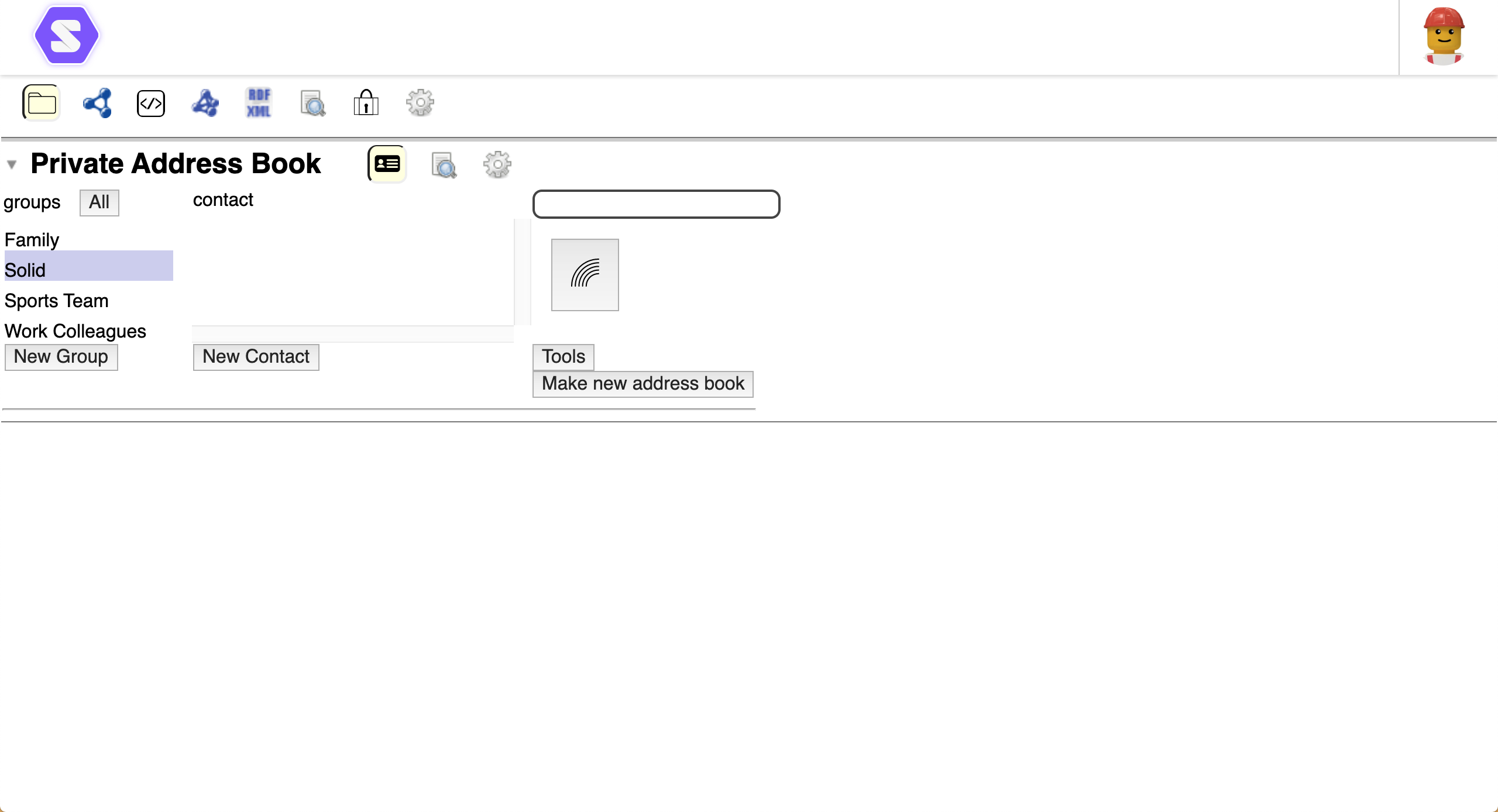
If the address book is not automatically displayed, click  in the address book header.
Contacts
Display a Contact
To display the details for a contact:
- Optionally, select the group(s) of which the contact is a member to filter the list of contacts.
- Click the name of the contact to display.
- The details of the contact are displayed in a Profile view:
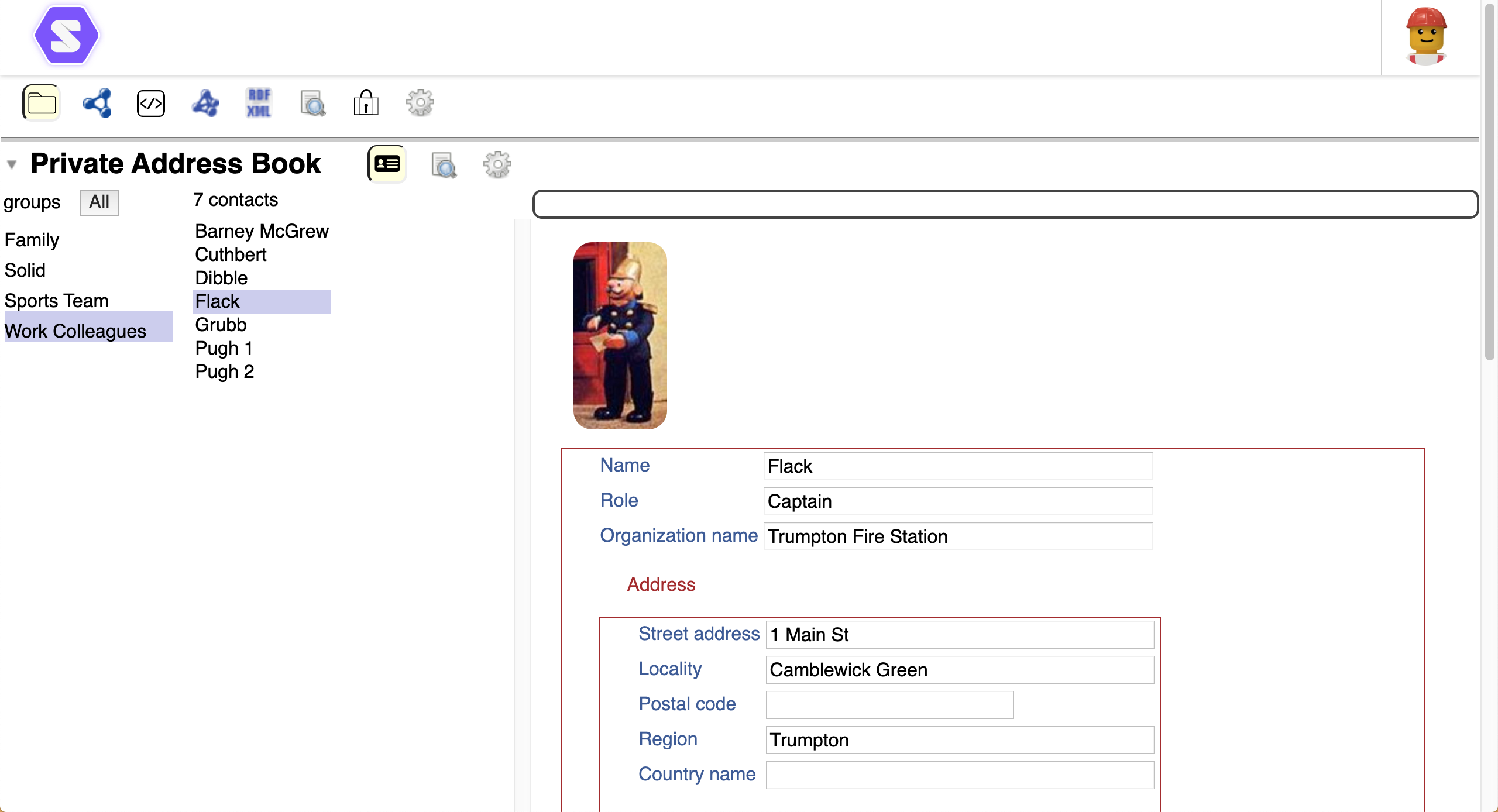
- Via the Profile view, you can edit the contact details.
To select all groups, click the All button. To select a subset of the groups, click the group name while holding the Shift/Command key.
Search
You can search for contacts within the address book:
- Enter the search term in the search bar at the top of the Address Book view.
- The names of any contacts, in the selected groups, that match the search term are listed.
Add a New Contact
To create a new contact record:
- Select the group(s) into which the new contact should be appended.
- Click the New Contact button.
- Enter the name for the new Contact.
- Click
 Continue icon to create the Contact.
 - A Profile view for the new Contact is displayed allowing the details to be entered.
A contact must be a member of at least one group.
Delete an Existing Contact
To delete an existing contact:
- Display the details for the contact.
- At the bottom of the Profile, hover the mouse pointer over the profile.
- A
 Remove icon is displayed.
 - Click the Remove icon to delete the contact.
Groups
Contacts can be assembled into groups. A single contact may be a member of multiple groups.
New Group
New contact groups can be created:
- Click the New Group button.
- Enter the name for the new group.
- Click Continue icon to create the group.
Delete Group
To delete an existing group:
- Hover the mouse cursor over the Group name.
- A Remove icon is displayed.
- Click the Remove icon to delete the group.
Group Sharing
Individual groups can be shared differently than the whole address book.
To adjust the sharing:
- Select the group to adjust.
- Click the displayed
 Sharing icon.
 - The Sharing settings for the group are displayed:
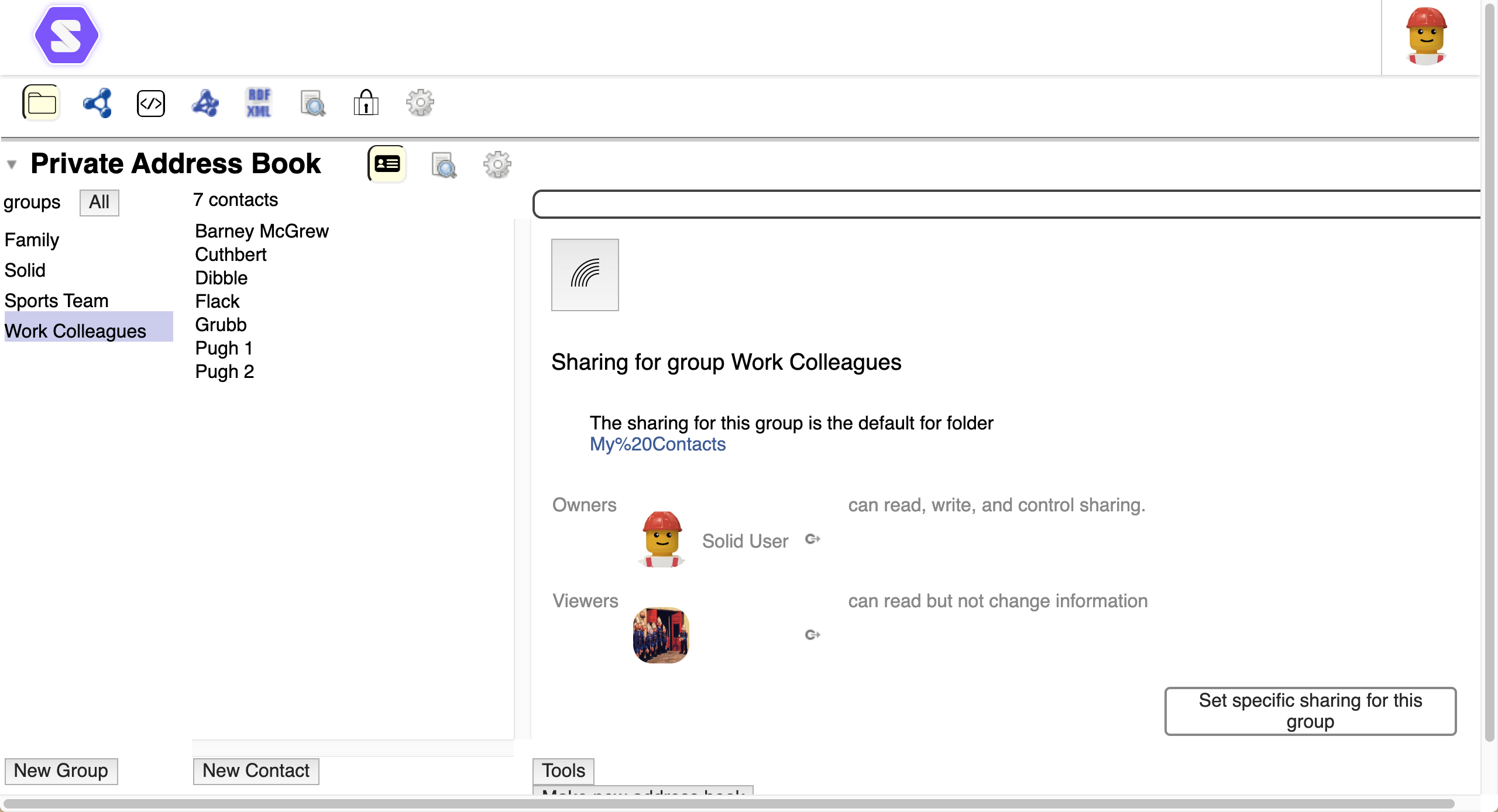
- To set custom sharing for this group:
- Click the Set specific sharing for the group button.
- This causes the sharing groups (Owners, Editors, Posters, Submitters, Viewers) for the group to be displayed.
- Permissions for users can be added, adjusted, and/or removed.
- To reset sharing for this group back to the default:
- Click the Stop specific sharing for this group button.
For detailed instructions on managing sharing permissions, see the Sharing view documentation.
Tools
The various Address Book tools allow you to review and maintain the address book:
- Sharing for the Address Book - Allows the sharing for the address book to be viewed and modified.
- Check Individual Card Access for Selected Groups - Who can access which groups?
- Find Duplicate Cards - Scans the contacts to determine any duplicate records. If any are found, they can be repaired.
- Find Individuals with no Group - Determines if any contacts are not in any group.
- Public Link to this Address Book - Generates a public link to the address book that is displayed in the Public things panel under Your stuff on your Dashboard.
- Personal Note of this Address Book - Generates a private link to the address book that is displayed in the Private things panel under Your stuff on your Dashboard.
- Load Main Index - Reloads the main people index.
- Statistics - Generates statistics for the address book.